Loop/Cycle
Getting Started
Welcome to Loop/Cycle, a rhythm creation and practice app that lets you compose polyrhythmic grooves inspired by minimalist music to guide your drumming practice. This guide walks you through the app's two modes, controls, and workflow.When you first open Loop/Cycle, the app displays "Loading instruments..." as it fetches audio samples from the server. Once loaded, you'll see the main composition screen with three sections: the sequencer (where you build rhythms), transport controls (play/stop and volume sliders), and a mode toggle.The app starts in Loop mode, which is the simplest way to begin. You can switch to Cycle mode at any time using the mode toggle button.Loop Mode — Building a Single Rhythm
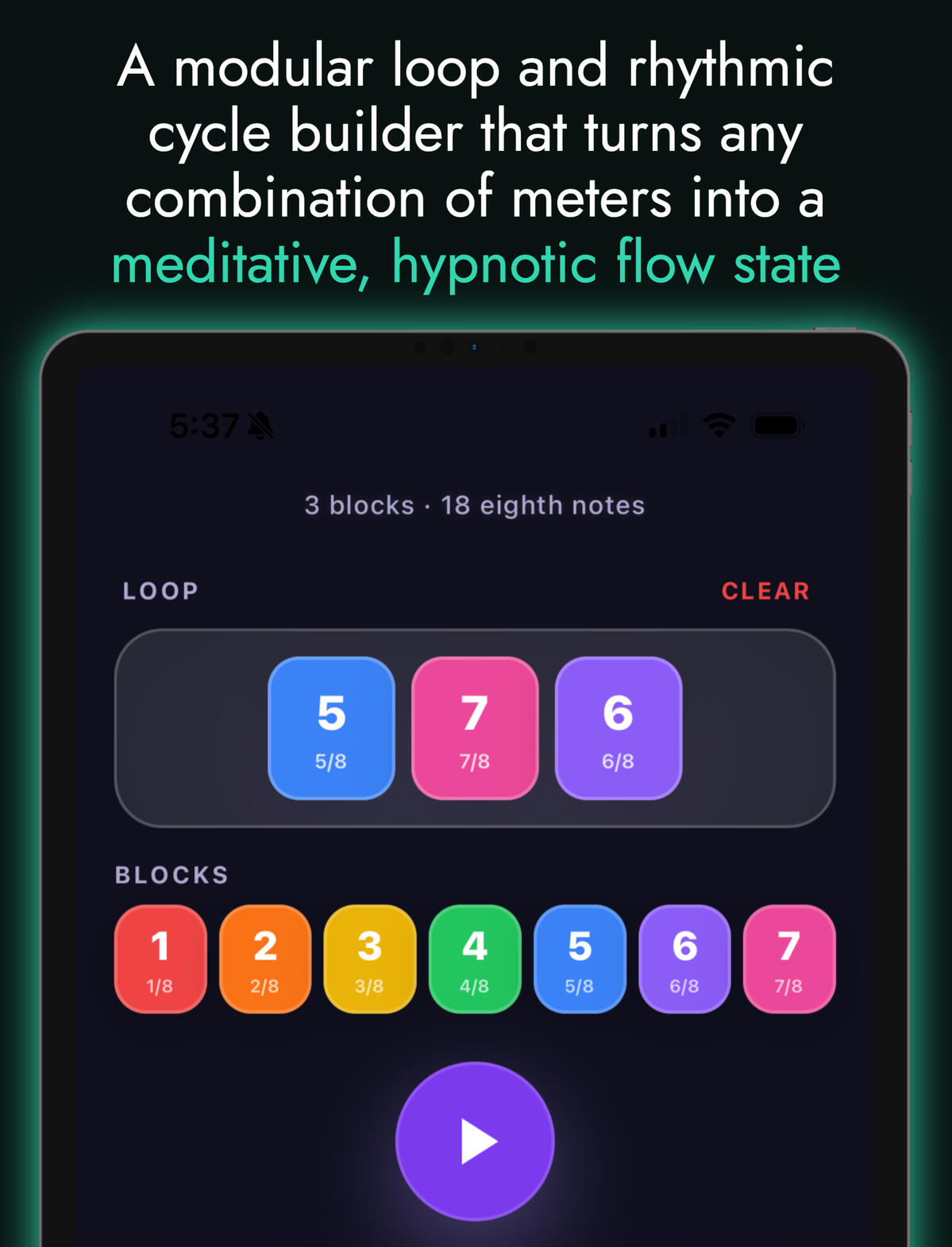
Loop mode lets you assemble a single repeating sequence by stacking colored blocks. Each block represents a rhythmic duration (measured in eighth notes).Adding Blocks to Your Sequence
At the bottom of the screen, you'll see a palette of seven colored blocks labeled 1 through 7. To add a block to your sequence, tap any block in the palette. The block appears at the end of your assembled loop (shown as a horizontal row of colored rectangles above the palette).For example, tapping block 4 (green) adds a half-note duration to your sequence. Tapping block 2 (orange) adds a quarter note. You can add blocks in any order and repeat blocks as many times as you want.Removing Blocks
To remove a block from your sequence, tap directly on the block in the assembled loop. The block disappears, and your sequence shortens. You can remove blocks one at a time until your sequence is empty.Viewing Your Sequence
Above the palette, the app displays your assembled loop as a row of colored blocks. The subtitle at the top shows how many blocks you have and the total duration in eighth notes. For example, "3 blocks · 9 eighth notes" means your sequence has three blocks totaling nine eighth notes (or 4.5 beats at 120 BPM).Cycle Mode — Creating Polyrhythms
Cycle mode lets you compose three independent rhythmic loops (one for each instrument: piano, marimba, and bass). Each instrument plays its own sequence simultaneously, creating complex polyrhythmic textures.Switching to Cycle Mode
Tap the Mode Toggle button (located near the top-right of the screen). The sequencer switches from a single row of blocks to three instrument windows, one for each instrument.
Selecting an Instrument
Each instrument window displays the instrument's name (Piano, Marimba, or Bass) with an icon. To add blocks to an instrument, first tap the instrument window to select it. The selected window highlights (shows a subtle glow or border change), and the block palette below becomes active for that instrument.Adding Blocks to an Instrument
Once you've selected an instrument, tap any block in the palette to add it to that instrument's sequence. The block appears inside the instrument window as a small colored rectangle. You can add multiple blocks to build a longer sequence for that instrument.Removing Blocks from an Instrument
To remove a block from an instrument's sequence, tap the block inside the instrument window. The block disappears.Clearing an Instrument
To clear all blocks from an instrument at once, tap the Clear button (usually shown as an X or trash icon) inside the instrument window. This removes all blocks for that instrument while leaving the other instruments unchanged.Understanding Polyrhythms
The magic of Cycle mode happens when instruments have different sequence lengths. For example:Piano: 8 eighth notes (1 bar)
Marimba: 5 eighth notes
Bass: 12 eighth notesEach instrument loops independently at its own pace. Over time, the three loops interact and create shifting patterns. The overall cycle completes when all three instruments align again—this can take many bars depending on the relationship between the sequence lengths.The subtitle at the top shows the total duration for each instrument. For example, "Cycle · P:8 · M:5 · B:12" means Piano has 8 eighths, Marimba has 5, and Bass has 12.Transport Controls
Below the sequencer, you'll find the playback and volume controls.
Play and Stop
The large circular button in the center is the Play/Stop button. Tap it to start playback. The button turns red and displays a stop icon while music is playing. Tap again to stop. The music stops immediately, and the next time you press play, the rhythm starts from the beginning.The Play button is disabled (grayed out) if you haven't added any blocks to your sequence. In Cycle mode, the button is disabled until at least one instrument has blocks.
BPM (Tempo)
Below the Play button, the BPM slider controls the tempo of your rhythm. The slider ranges from 60 to 180 beats per minute. Drag the slider left to slow down, or right to speed up. The current BPM value displays on the right side of the slider.Changing the BPM while music is playing takes effect immediately—the rhythm speeds up or slows down smoothly.Volume Controls
Three volume sliders let you adjust the loudness of individual instruments:Piano — Controls the volume of piano notes in your sequence
Bass — Controls the volume of bass notes
Click — Controls the volume of the click track (a steady pulse that helps keep time)
Choir — Controls the volume of the choir.Each slider ranges from 0 (silent) to 100 (full volume). Drag any slider to adjust the volume in real time. This is useful for balancing the mix while the music plays or for muting an instrument entirely.Workflow TipsCreating a Simple Loop
Start in Loop mode. Tap blocks 4, 2, 4 (green, orange, green) to create a 10-eighth-note sequence. Press play and listen. Adjust the BPM slider to find a tempo you like. Use the volume sliders to balance the instruments.Exploring Polyrhythms
Switch to Cycle mode. Add blocks to Piano (e.g., 4 + 4 = 8 eighths). Add blocks to Marimba (e.g., 5 eighths). Add blocks to Bass (e.g., 3 + 3 + 3 = 9 eighths). Press play and listen to how the three loops interact. The pattern repeats every 360 eighths (the least common multiple of 8, 5, and 9).Saving Your Work
Tap the Save button (usually shown as a disk or bookmark icon) at the top-right to save your current composition. You can load saved compositions later to continue working on them.Adjusting While Playing
All controls (BPM, volume) respond in real time while music is playing. This lets you experiment with different tempos and mixes without stopping and restarting.
Troubleshooting
No Sound
Ensure your device volume is turned up and the app has permission to play audio. Check that the volume sliders for your instruments are not set to zero. If the Play button is grayed out, add at least one block to your sequence.Rhythm Sounds Choppy or Delayed
This is normal when you first press play—the audio engine is initializing. Wait a moment and the rhythm should stabilize. If the rhythm continues to sound unstable, try restarting the app.Saving Doesn't Work
Ensure the app has permission to access storage on your device. Check your device settings to grant the app storage access if needed.Contact Support
Have a question or a rhythm suggestion?
Email: [email protected]
Response time: Usually within 24–48 hours.
Privacy Policy
Effective Date: May 9, 2026Loop/Cycle: Privacy Policy
Loop/Cycle was built with a "Privacy-First" philosophy. Because we believe your creative process and technical data should remain yours, our policy is simple:Data Collection: Loop/Cycle does not collect, store, or transmit any personal information, location data, or usage analytics.Local Processing: All rhythmic generation, MIDI sequencing, and audio synthesis happen locally on your device.On-Premise Infrastructure: The app does not communicate with external cloud servers for processing patterns or user data.Audio Samples: While audio samples are fetched from a secure Content Delivery Network (CDN) to minimize app size, no user identifiers are sent during this request.Third Parties: We do not share any data with third parties because we don't have your data to begin with.Contact: For privacy inquiries, contact [email protected].
© Untitled. All rights reserved.